Main Menu of Os Engine.
Good day, in this instruction we will familiarize ourselves with the main menu of OsEngine and understand its components. We will not delve into each button, as it will take a lot of time. We will learn how to interact with each button in separate instructions. Here, we will simply understand what each button is for.
How to open?

The main menu window looks like this:
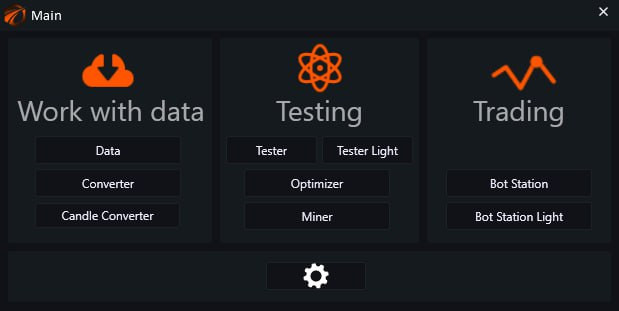
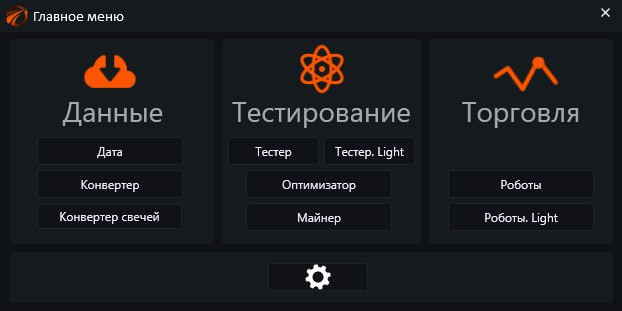
It can be in Russian or English.
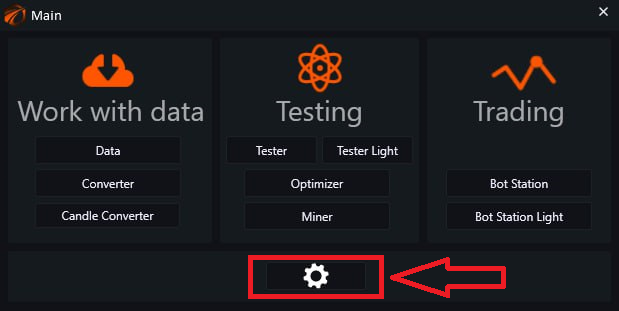
You can choose the language that suits you by clicking on the gear icon.
The language selection is part of the general settings, which you can use intuitively (just check or uncheck the boxes):
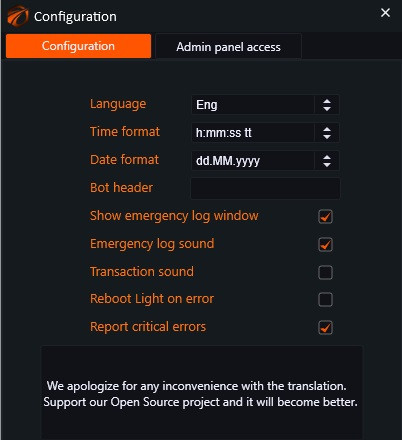
1. Switching the program language.
2. Setting the time format that will be displayed in the program.
3. Setting the date format that will be displayed in the program.
4. The header text allows you to label the terminal with a unique name. Relevant for those who trade from multiple terminal versions on one computer.
5. Show emergency log window - enable or disable the display of a log that pops up above all windows in case of issues.
6. Emergency log sound - if enabled, an audio signal will be emitted during recording to the emergency log.
7. Trade sound - if enabled, an audio signal will be emitted during a trade.
8. Restarting the lite in case of an error - restarts the application if it "crashes with a critical error."
9. Sending critical errors. Details can be found in this post.
The main menu is divided into three parts. Everything related to historical data is on the left:
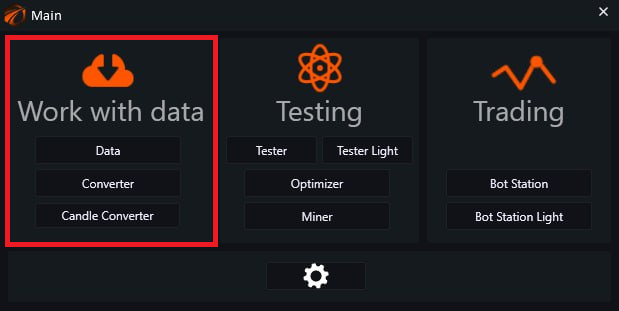
Let's proceed with the buttons from top to bottom:

«Date» is used to connect to the desired exchange and download historical data.
Instruction, link.
«Converter»:
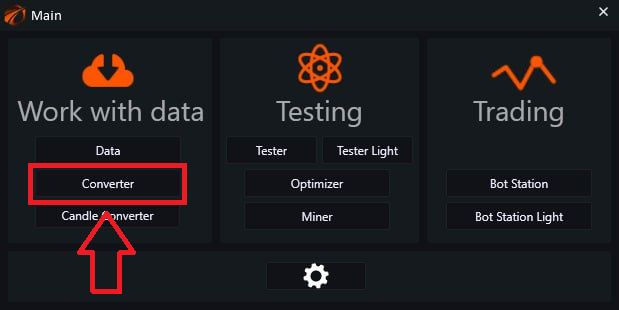
This module is used to convert exchange data. Conversion can be done from a smaller timeframe to a larger one (e.g. trades to 5-minute candles).
«Сandles converter» button:

In the module, the same things are done as in the converter, but with candle data.
Instruction, link.
In the middle part, we have everything we need for testing.
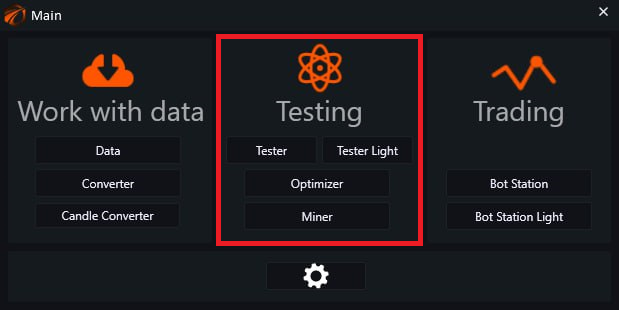
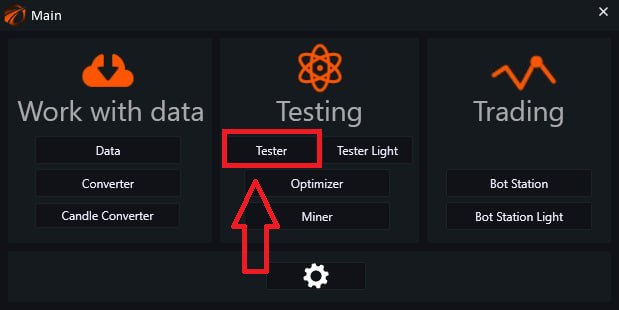
«Tester» allows us to test robots.
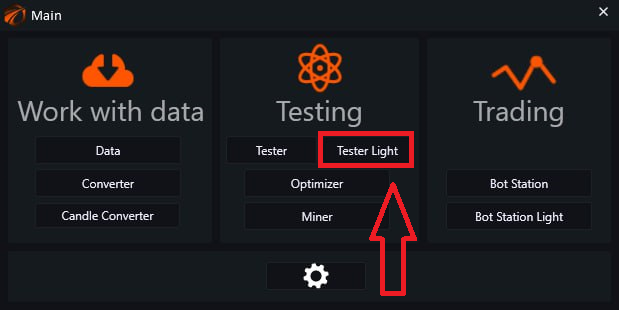
«Tester.Light» is designed for portfolio testing (multiple robots) and has a simplified interface and a very convenient settings menu:
Instruction, link.
«Optimizer»:
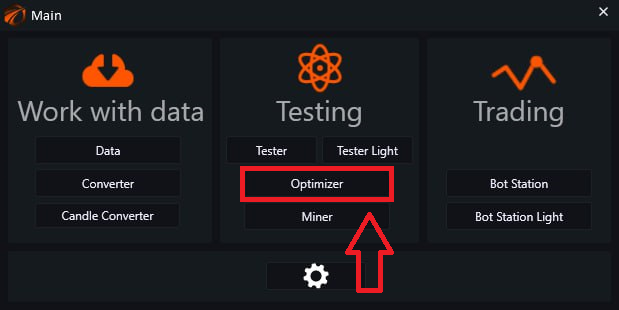
Designed for strategy optimization and allows you to find settings that will achieve the most profitable results in real trading.
Instruction, link.
«Miner»:
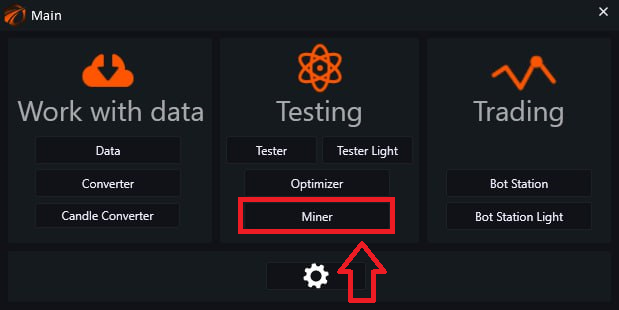
This module allows you to search for profitable patterns on the chart in manual and automatic mode.
Instruction, link.
And in the third part, we see only two tabs that are needed for trading.
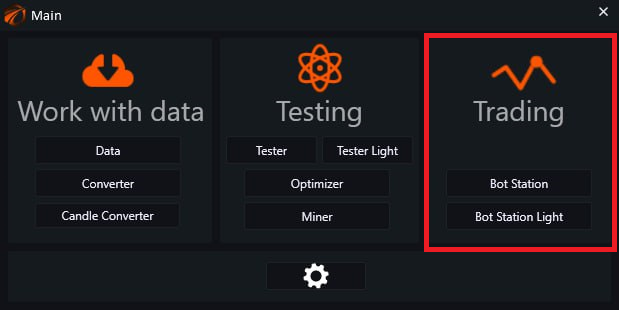
«Robots»:
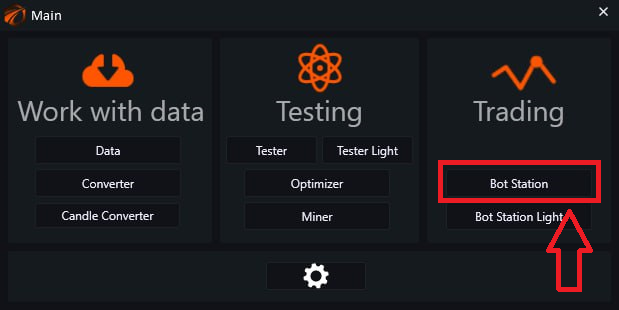
Designed for real trading with robots.
The main window looks the same as in the Tester, and the buttons perform the same functions.
«Robots Light»:
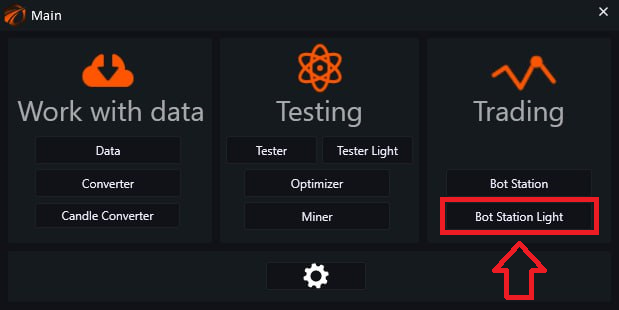
Designed for real trading with a portfolio (multiple bots).
The main window looks the same as in the Tester.Light and the buttons perform the same functions.
Instruction, link.
Wishing you successful tests and profitable trading!
PS:
If something doesn't work or you have any questions, please write in the support chat, link.