Free robots for Bitget.

Let's talk about how to run trading robots for the Bitget exchange. We will do this using our open and free library for algorithmic trading - OsEngine.
You can download the library and robots here: https://github.com/AlexWan/OsEngine
Don't forget that you can register using this link and get a 20% discount on commissions: https://partner.bitget.com/bg/txme90901684140842016
For those who came from a search engine, we remind you. OsEngine is a ready-made and complete set of programs necessary for an algo trader. Data download, testing, optimization, and trading. Everything is completely free and open to individuals. We create software for algorithmic funds and algo traders. This library was born from this process. Enjoy.
1. Setting up API on BitGet.
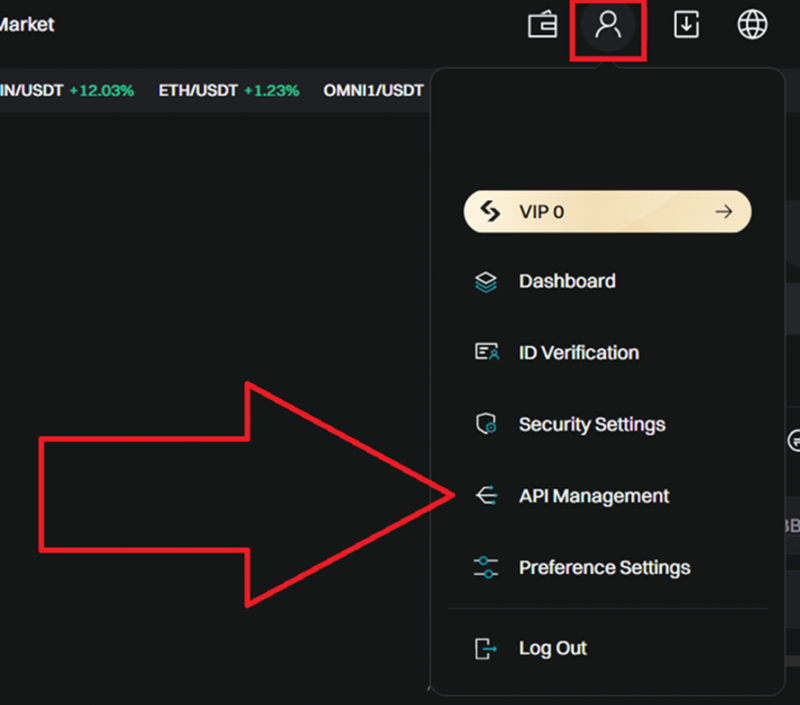
First, we need to extract keys for trading access through BitGet API. This is done from the user's personal account. In the user menu, choose:
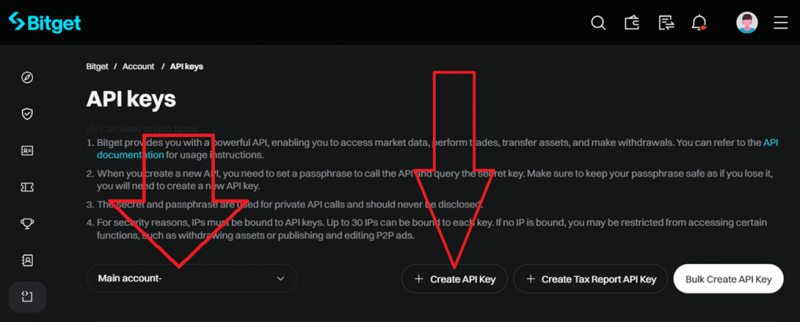
Select the account for which you are creating the key and click the Create API Key button:
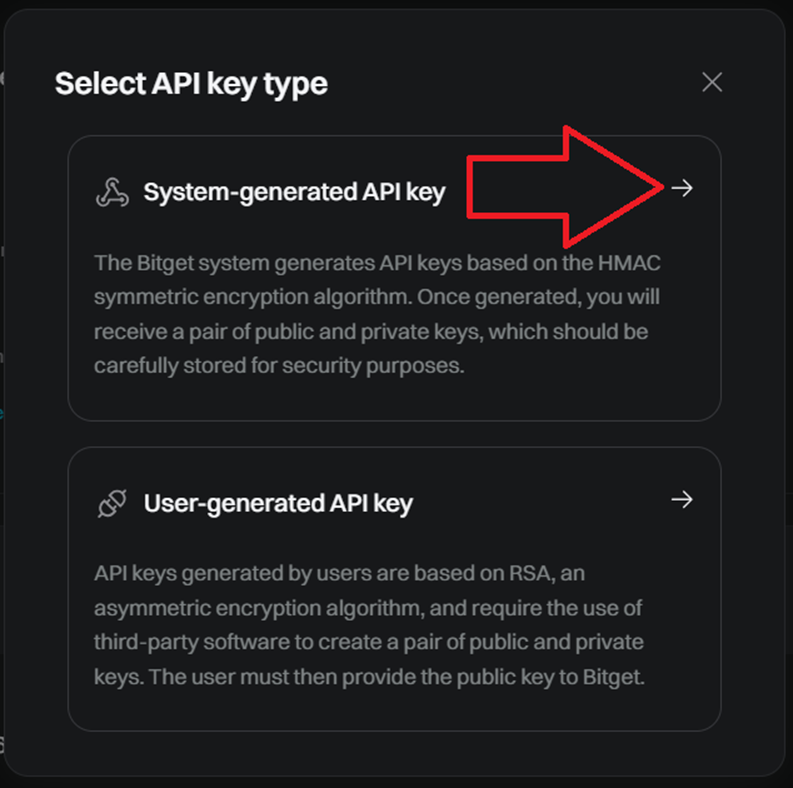
Choose the automatically generated key, don't come up with anything:
Next, you will see the key creation menu:
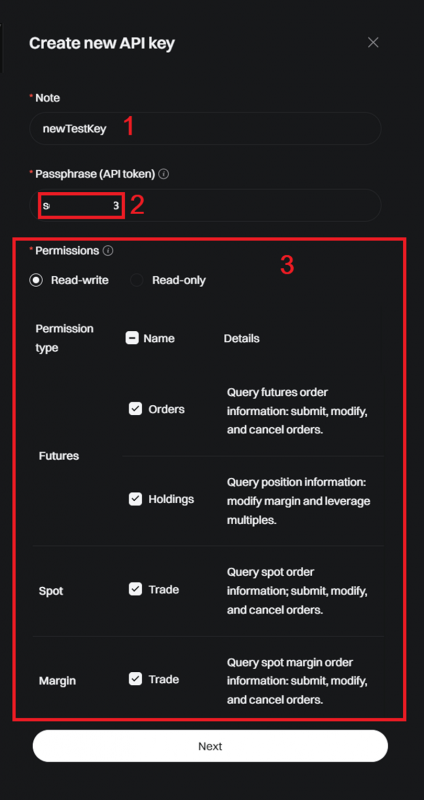
1. Enter its name.
2. This password must be created by yourself and saved. This password will be needed later to enter in the OsEngine terminal.
3. Set trading permissions.
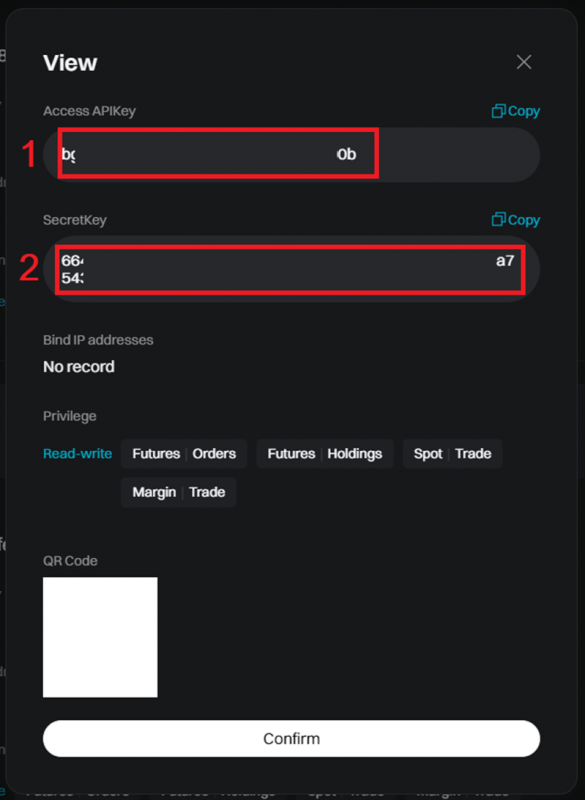
1. Save Api Key.
2. Save Secret Key.
We will need both below.
2. Os Engine.
If you are not familiar with this program, you will need to go to our FAQ first. Download it and deploy it.
Link: https://os-engine-eng.com/faq
3. Connect the trading robots to Bitget API.
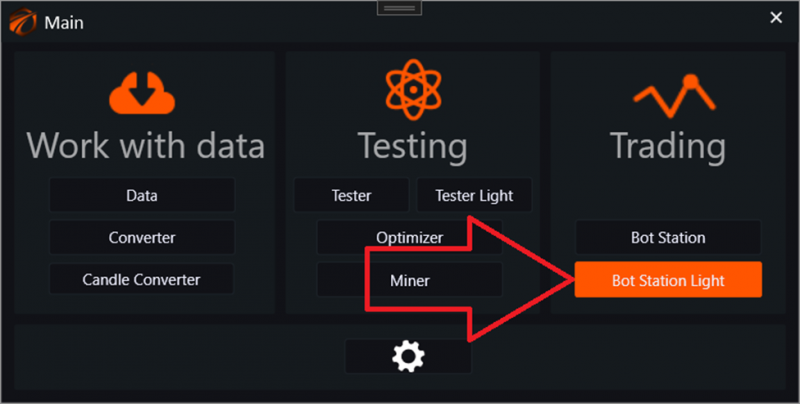
In the main Os Engine menu, select the Bot Station Light program:
Go to connection management:
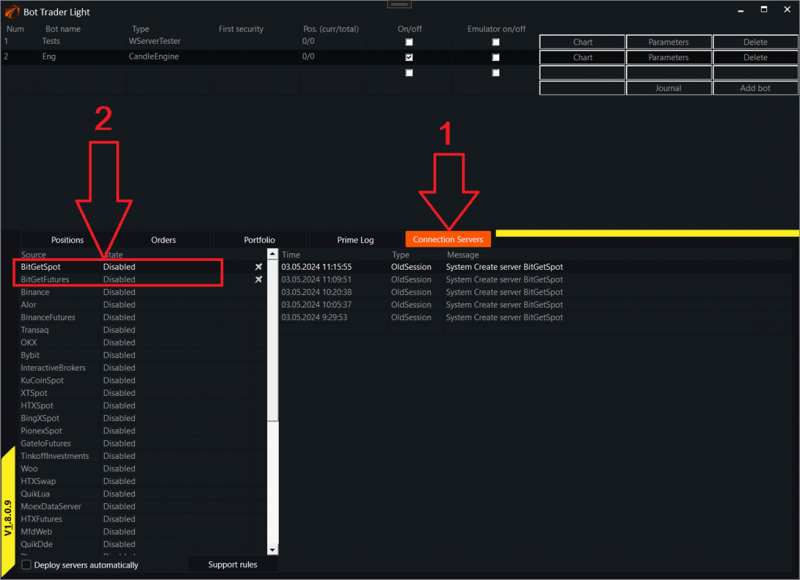
1. Open the connections tab.
2. Double click on the BitGet connector with the left mouse button. There are two connectors - Spot and Futures.
After that, the BitGet server settings window should open before us:
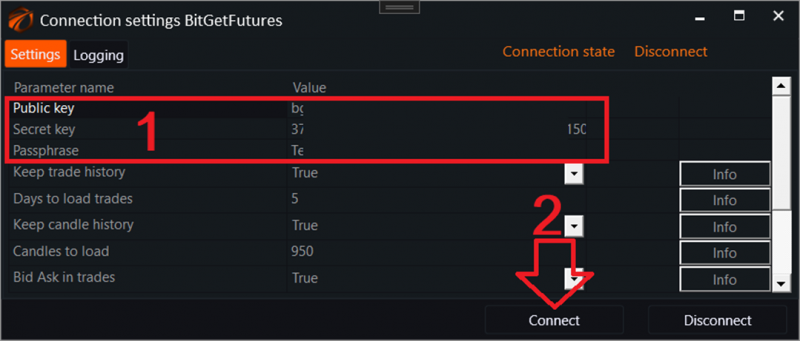
1. Enter the keys that were created in the personal account.
2. Click on the Connect button.
Now let's move on to creating robots:
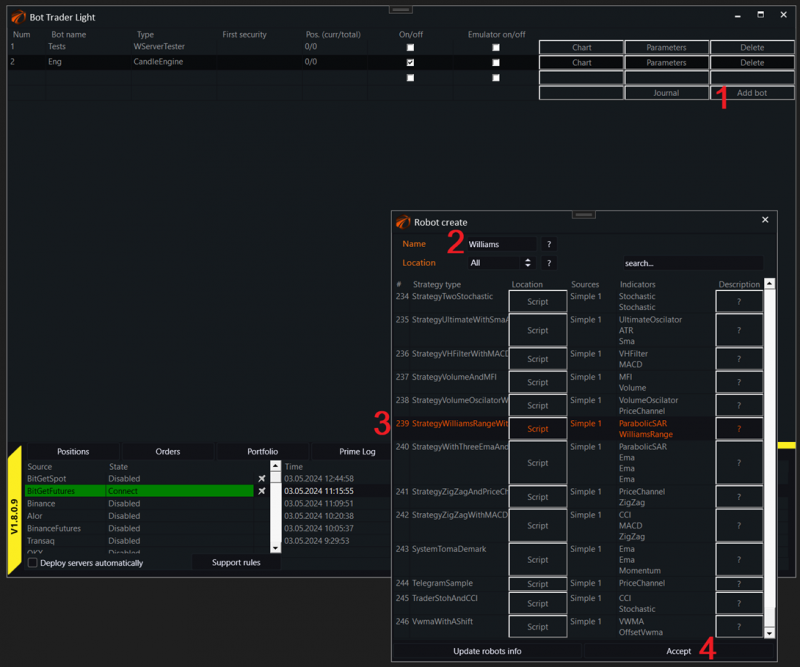
1. Click "Create a robot" in the application window.
2. Come up with a name for it.
3. Choose a robot.
4. Click "Accept".
Next, configure the connected data:
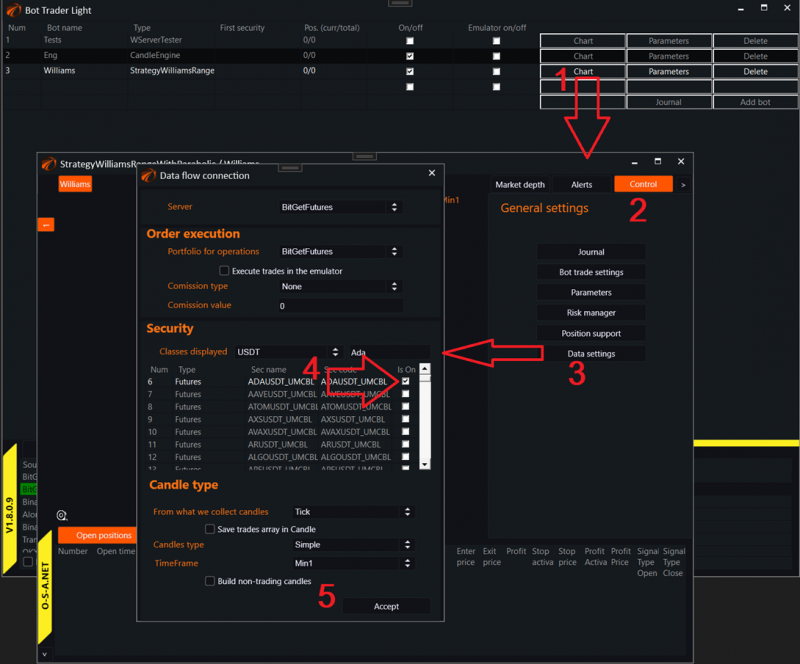
1. Open a separate window for the robot.
2. Go to the robot's management tab.
3. Click on Data Settings.
4. In the window that opens, select the tool, portfolio, etc.
5. Click "Accept".
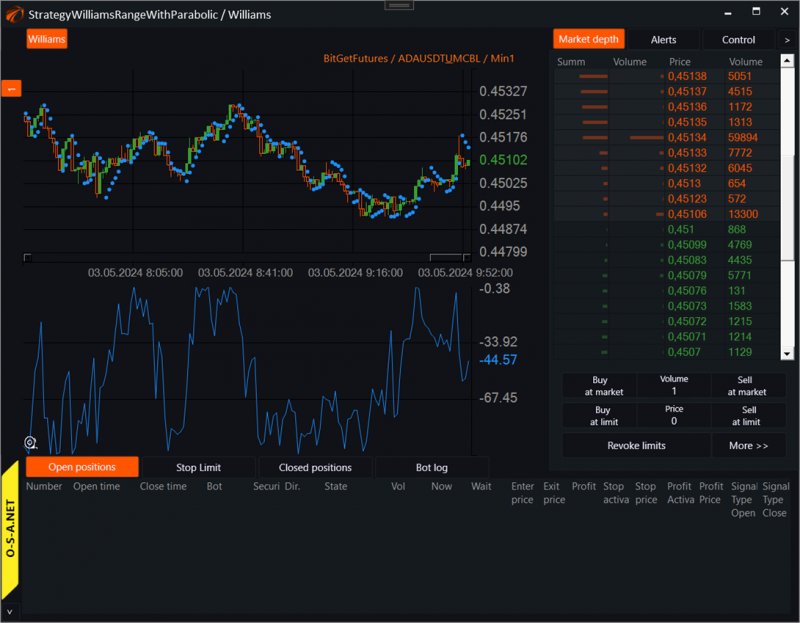
You can now trade with robots on Bitget!
Good luck with your algorithms!