How to send messages in Telegram from the OsEngine robot.

Sometimes, you may need to receive notifications from a trading robot. These notifications could be about opening positions, closing positions, errors, etc.
So, let's consider how to send messages in one of the popular messengers, Telegram.
The instructions consist of 3 steps:
1. Creating a bot in Telegram to receive messages.
2. Sending messages using the free OsEngine robot as an example.
3. Reviewing the robot's code.
1. Creating a bot in Telegram to receive messages.
We need a bot in the Telegram messenger itself. To create one, we use BotFather - the messenger's official bot that allows creating and managing bots. Open it and start a chat with it (send the "/start" command):

BotFather responds with a list of commands, and we need the "/newbot" command - enter it. In response, you will be asked to choose a name for your new bot. Come up with a name and enter it, for example, "newOSAbot".
Then, you will be asked to choose a username that ends with "bot". Make one by adding "bot" at the end - for example, enter "newOSAbotbot".
So, the dialog for creating the bot looks like this:
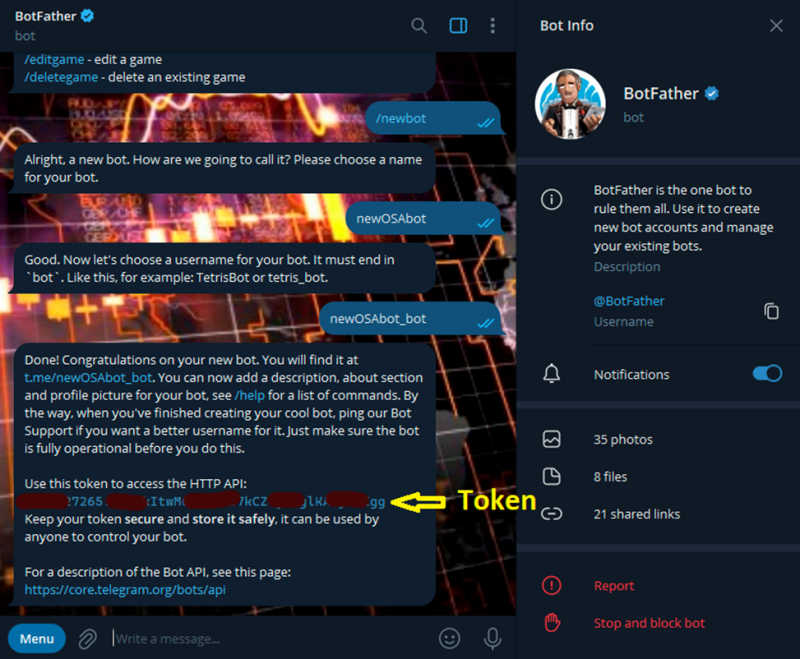
BotFather will inform you about the successful creation of the bot and will provide a Token that you need to save somewhere. You will need this Token for the bot to work.
If necessary, you can customize bots created in BotFather - add descriptions, commands, set avatars, etc.
Next, you need to find out your Telegram ID. You can use a bot to find this out: https://t.me/userinfobot
Run the bot, and it will reply with your ID, which you should save alongside your Token.
This is how it looks:

Now let's check our newly created bot. Enter the bot's name (newOSAbotbot) in the Telegram search and start it. You can check sending messages to it via a browser by inserting your Token and ID in the address bar ("https://api.telegram.org/bot + Token + /sendMessage?chat_id= + ID + &text=Hello!").

If everything is correct, you should receive a welcome message in the chat with the bot.

All notifications from the OsEngine robot will be sent here in the future.
2. Sending messages using the free OsEngine robot as an example.
We need a sample robot that sends messages to Telegram, and it is called TelegramSample.cs.

Launch OsEngine and add this robot. The notification settings can be found under the Telegram settings tab - where you enter the previously obtained Token and ID in the respective fields.

Don't forget to turn on the "On" mode. Also, in the Trade settings tab, turn on and configure the indicator. You can also set the working volume there.
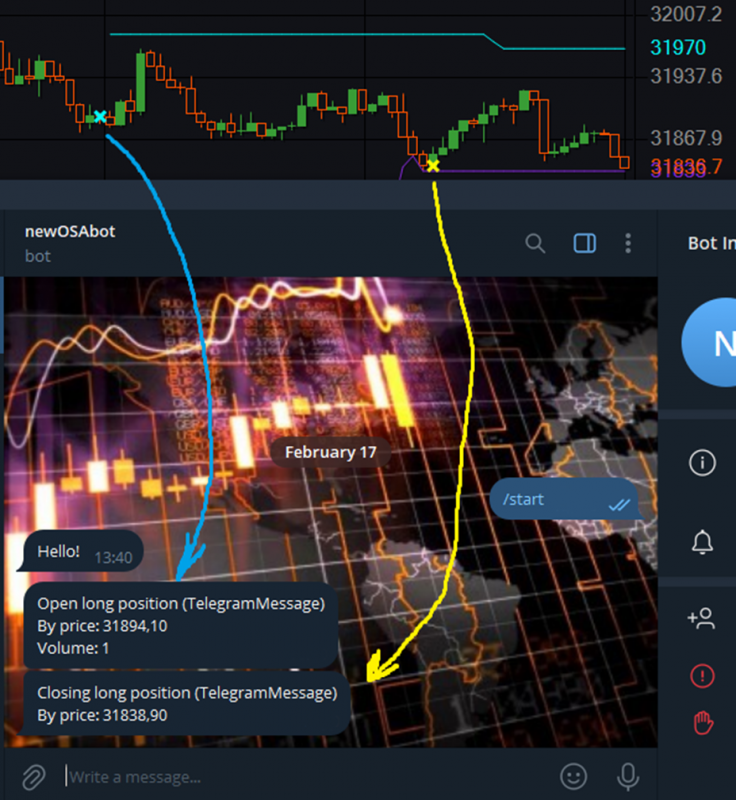
The robot is not for live trading but for demonstrating how notifications work in Telegram. Its trading strategy is very simple - it uses the Price Channel indicator, enters long positions when the upper channel boundary is broken, and exits when the lower boundary is broken.
The notifications in the robot are for: a) opening a position; b) closing a position; c) losing connection with the server.
The notification about losing connection works only in OsTrader (in live mode). Therefore, in the Tester, we will test notifications about trades.
The notifications contain the event text, the robot's name, and entry/exit prices.
Once everything is set up, run the test (without acceleration, to avoid spamming notifications) - notifications should appear.
3. Reviewing the robot's code.
The asynchronous method SendTelegramMessageAsync(string message) is responsible for sending messages to Telegram, taking the message to be sent as an input:

The method includes some checks for the ID and Token input correctness.
The methods for opening and closing positions are called in the handlers for successful opening and closing of positions. In these handlers, we construct the required string and pass it to the method:

The connection status check with the server is implemented in the CheckConnect() method:
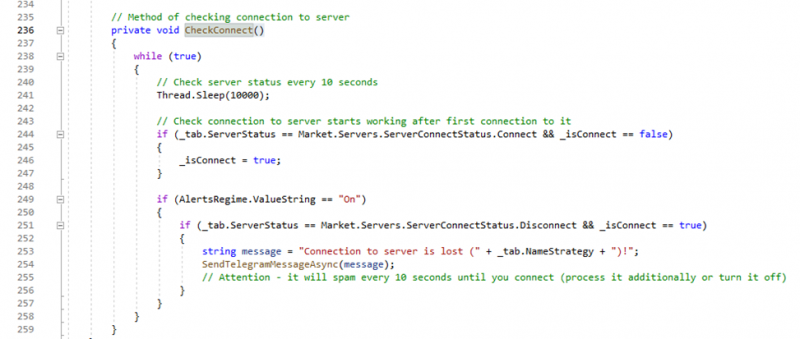
The method includes an infinite while loop that checks the server status every 10 seconds. When the connection is lost, a notification is sent.
The method is started in a separate thread from the constructor if the robot is running in live trading mode (OsTrader).

Link to the robot on GitHub: https://github.com/AlexWan/OsEngine