Automatic position support in OsEngine.

For any open position, you can assign standard ways to manage it.
To access the support settings menu, follow these steps:
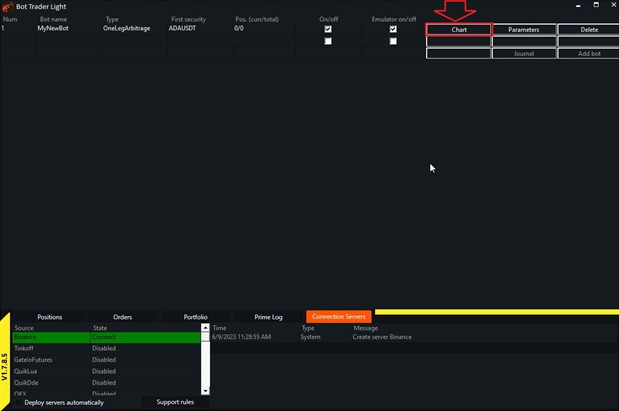
Click on «Chart».
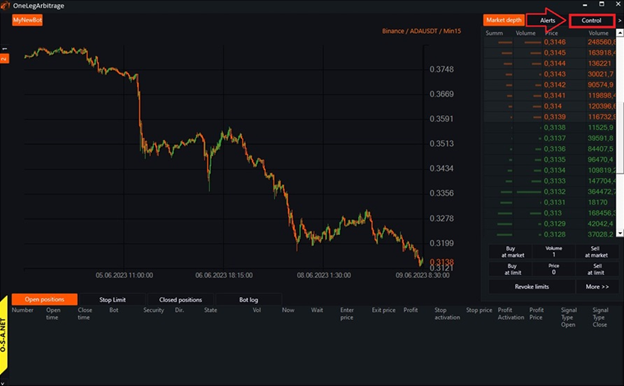
Then, click on «Control».
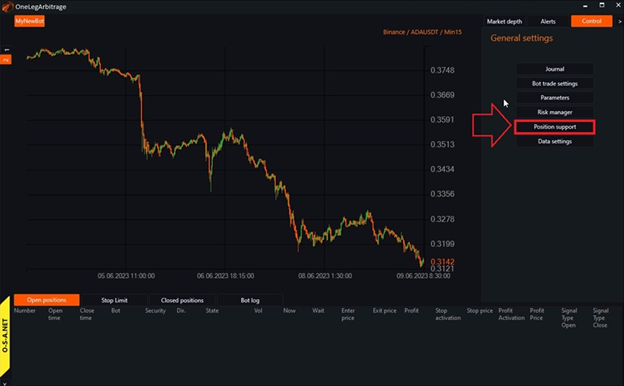
And then on «Position support».
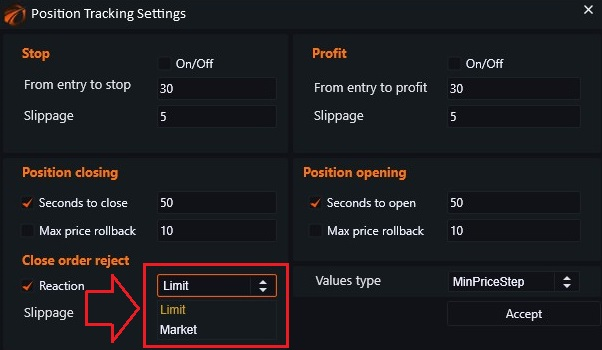
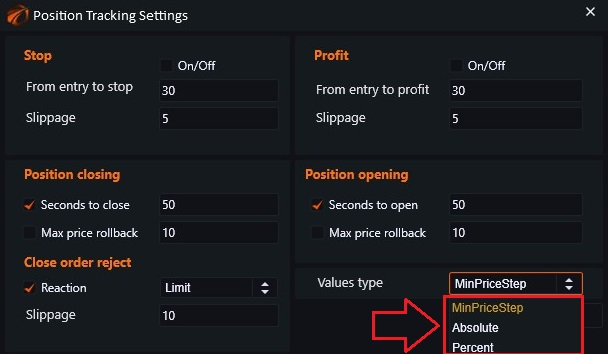
The following window will appear:

1. «Stop».
A regular stop order that will be placed at the actual entry price of the position +/- the «Entry to Stop» value. Additionally, you can set the slippage with which the final buy/sell order will be placed in the system.
2. «Position closing» and 6. «Position opening».
These parameters allow you to adjust the time allocated for order execution. After this time has passed, the order is canceled by the exchange.
If it is an opening order, in case of complete non-execution, such a position is considered invalid. If the order is partially executed, then such a position is considered open.
«Max price rollback» - the distance in points that the price can move away from the order price, after which the order is canceled.
If the order is canceled for a previously open position, it means that the closing did not work. In this case, it is better to use the block below.
3. «Closed order regect».
There are cases when the order to close a position is canceled or does not execute. For example, the stop order did not execute because the market moved away from it.
For such cases, you can set a reaction. «Market" will close your position at the market price. «Limit» will close it with a limit order and a pre-set slippage.
4. «Profit».
A regular profit order that will be placed at the actual entry price of the position +/- the «Entry to Profit» value. Additionally, you can set the slippage with which the final buy/sell order will be placed in the system.
«Max price rollback» - the distance in points that the price can move away from the order price, after which the order is canceled.
If the order is canceled for a previously open position, it means that the closing did not work. In this case, it is better to use the block below.
5. «On/Off»
• Check the boxes where you want them to be considered in the tests.
7. «Values type». There are three options:
• «MinPriceStep» - minimum price step.
• «Absolute» - absolute value.
• «Percent» - value in percentages.
8. «Accept» - confirm settings button.
IMPORTANT!!!
• These settings do not replace or adjust the individual tactics of setting stops and profits within robots. If the robot already has a stop in place, configuring this panel additionally will create a conflict!
• Do not disable the «Reaction to canceled closing orders»! In this case, you will be unprotected during sharp market movements!
• Each tab on the panel has separate support settings! If your robot uses multiple instruments, make sure the support is configured for all tabs.
Good luck with testing and profitable trading!
If you have any difficulties or questions, please write to the support chat. Link